Guide
What is AI menu import from a photo?
Upload a photo of your printed or handwritten menu and let AI recognise categories, product names, prices and descriptions and turn them into a tidy menu draft. Hours of data entry become minutes.
Short answer
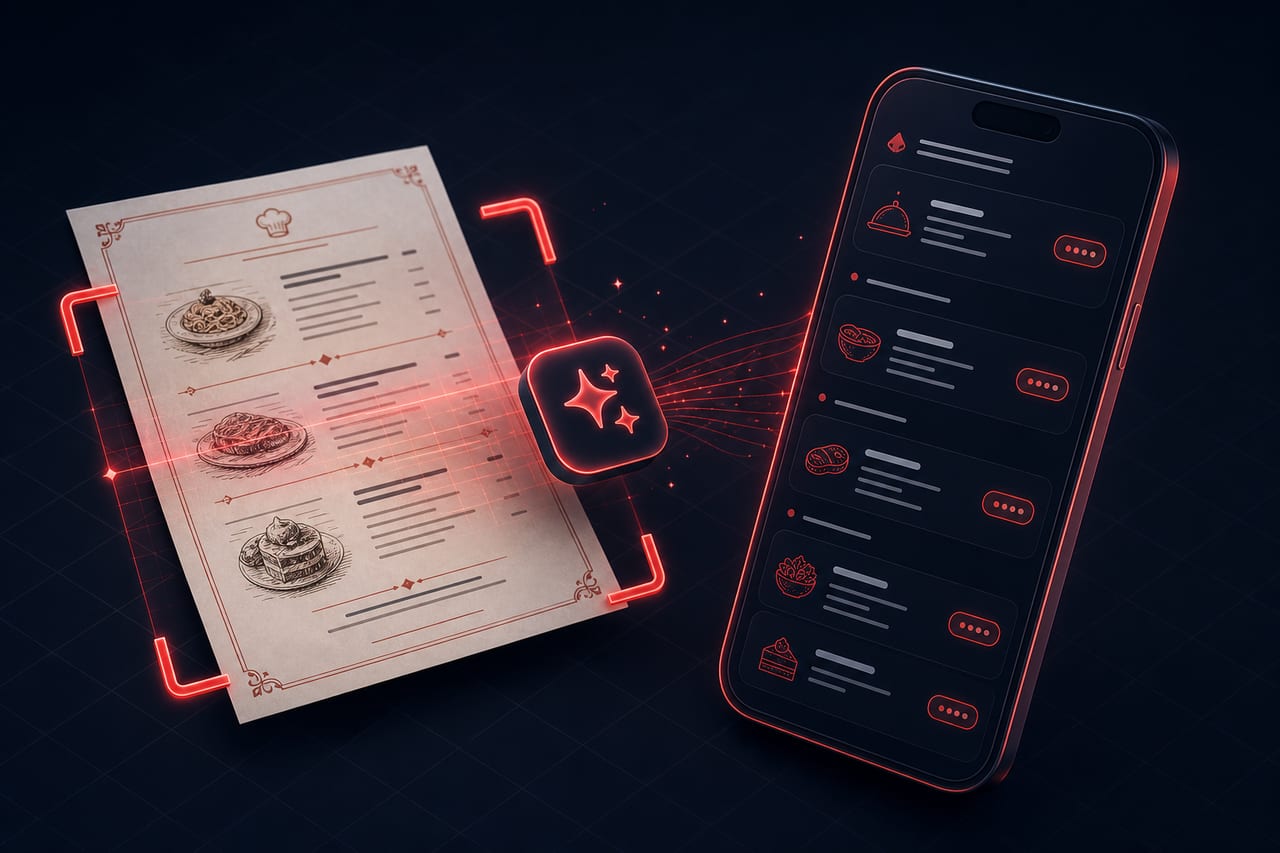
AI menu import is when AI automatically extracts categories and products (name, price, category, description) from a photo of your menu. In Dijifis you upload one or more menu photos; the AI reads the image and produces a structured draft, you review and edit it, and add it to your menu in bulk with one tap. The system preserves the menu's original language and never invents anything that isn't visible.
Definition
AI menu import is a setup accelerator powered by image recognition (vision). Whether it's a printed menu, a board or a handwritten list, it reads the text in the photo and extracts the product name, the numeric price, its category and a short description if present.
The process has two stages: first an extract is run and a draft is presented to you — this step saves nothing to your menu. After you edit the draft, the second stage adds the approved suggestions to your menu in bulk (commit). This keeps you fully in control.
How does it work?
AI menu import typically proceeds through these steps:
- You upload one or a few photos of your printed/handwritten menu.
- The AI reads the image and extracts categories, products, prices and descriptions.
- The result is presented as an editable draft; nothing is saved to your menu at this stage.
- You review the draft, fix anything misread, remove what's unneeded and add what's missing.
- When you confirm, the products and categories are added to your menu in bulk; you're ready to take orders right away.
Benefits
It removes data entry, the biggest hurdle in menu setup.
Setup in minutes
Instead of entering dozens of products one by one, you extract them from a photo and add them in bulk.
Fewer errors
Because price and name extraction is automatic, manual entry errors drop; you still make the final call.
Preserves the original language
Items are extracted in whatever language the menu was written in; nothing is translated unintentionally.
You stay in control
The AI only produces a draft; nothing is added to the menu until you approve it.
Best practices
To get the best result:
- Photograph the menu well-lit, sharp and straight-on.
- Split long menus into a few clear photos (don't cram too much into one).
- After extraction, always check prices and category matches.
- Manually fix unreadable/faint areas and add any missing products.
- Before confirming, shorten and tidy up product descriptions.
Related guides and solutions
Frequently asked questions
- How many photos can I upload?
You can upload multiple menu photos at once. Splitting long menus into a few clear photos improves accuracy.
- Does it read a handwritten menu?
Printed menus give the best result; handwriting and photo quality can affect the outcome. In every case the extraction is a draft that you can edit.
- Do prices and language come out correctly?
Prices are extracted as numbers without a currency symbol and the menu is kept in its original language. Even so, it's recommended to check prices and category matches before confirming.
- Is the extraction saved to my menu immediately?
No. The extraction stage writes nothing to your menu; products are added in bulk only when you confirm (commit).
Summary
AI menu import extracts categories and products from a menu photo automatically, cutting setup from hours to minutes. The AI preserves the original language, invents nothing that isn't visible and only produces a draft; when you review and approve it, products are added to your menu in bulk. You stay fully in control, while the AI provides the speed.
Get started
Contact us about an online ordering solution for your business and start taking orders on your own channel with Dijifis.